
Learn how to deploy n8n with Docker, PostgreSQL 17, and Nginx on Debian 13. Secure the setup with HTTPS and run n8n automation workflows in production.
Introduction
Automation platforms are becoming a core part of modern infrastructure. n8n is an open-source workflow automation tool that allows teams to connect APIs, automate tasks, and build powerful integrations without maintaining complex backend logic.
Deploying n8n in production requires more than simply starting a container. A stable deployment includes:
- Docker for isolated runtime
- Persistent storage
- Reverse proxy using Nginx
- HTTPS encryption
- Proper environment configuration
In this guide, we deploy n8n using Docker and Nginx on Debian 13 in a secure and maintainable setup suitable for production environments.
Step 1 - Update the Debian Server
Before installing any software, update system packages to ensure the server runs the latest security patches.
sudo apt update && sudo apt upgrade -y
Install a few required utilities:
sudo apt install curl git ufw -y
Step 2 - Install Docker
Debian 13 repositories contain Docker packages, but installing Docker from the official repository ensures the latest stable version.
Install required dependencies:
sudo apt install ca-certificates curl
Add Docker’s official GPG key:
sudo install -m 0755 -d /etc/apt/keyrings
sudo curl -fsSL https://download.docker.com/linux/debian/gpg -o /etc/apt/keyrings/docker.asc
sudo chmod a+r /etc/apt/keyrings/docker.asc
Add the Docker repository:
sudo tee /etc/apt/sources.list.d/docker.sources <<EOF
Types: deb
URIs: https://download.docker.com/linux/debian
Suites: $(. /etc/os-release && echo "$VERSION_CODENAME")
Components: stable
Signed-By: /etc/apt/keyrings/docker.asc
EOF
Update the package list:
sudo apt update
Install Docker and Docker Compose:
sudo apt install docker-ce docker-ce-cli containerd.io docker-buildx-plugin docker-compose-plugin -y
Start Docker and enable it at boot:
sudo systemctl enable --now docker
Verify installation:
docker --version
Step 3 - Create n8n Project Directory
For maintainability, we store configuration files and persistent data in a dedicated directory.
mkdir -p ~/n8n-docker && cd ~/n8n-docker
sudo chown -R 1000:1000 ./n8n_data
Create a persistent storage directory:
mkdir n8n_data
This directory ensures workflows, credentials, and execution data remain available even if the container restarts.
Step 4 - Create Docker Compose Configuration
Create the Docker Compose file.
nano docker-compose.yml
Add the following configuration:
services:
  postgres:
    image: postgres:17
    container_name: n8n_postgres
    restart: always
    environment:
      POSTGRES_USER: n8n
      POSTGRES_PASSWORD: strongpassword
      POSTGRES_DB: n8n
    volumes:
      - postgres_data:/var/lib/postgresql/data

  n8n:
    image: n8nio/n8n:latest
    container_name: n8n
    restart: always
    ports:
      - "5678:5678"
    depends_on:
      - postgres
    environment:
      - DB_TYPE=postgresdb
      - DB_POSTGRESDB_HOST=postgres
      - DB_POSTGRESDB_PORT=5432
      - DB_POSTGRESDB_DATABASE=n8n
      - DB_POSTGRESDB_USER=n8n
      - DB_POSTGRESDB_PASSWORD=strongpassword
      - N8N_HOST=n8n.example.com
      - N8N_PORT=5678
      - N8N_PROTOCOL=https
      - WEBHOOK_URL=https://n8n.example.com/
      - NODE_ENV=production
      - GENERIC_TIMEZONE=Asia/Kolkata
    volumes:
      - ./n8n_data:/home/node/.n8n

volumes:
  postgres_data:
Important configuration details:
- N8N_HOST defines the public domain.
- WEBHOOK_URL ensures external services trigger workflows correctly.
- GENERIC_TIMEZONE sets execution time accuracy.
Persistent storage prevents data loss.
Replace:
n8n.example.com
with the actual domain used for deployment.
Step 5 - Start n8n Container
Launch the container using Docker Compose.
docker compose up -d
Check running containers:
docker ps
The n8n service now runs on:
http://SERVER_IP:5678
However, production deployments should not expose this port directly. Instead, traffic should pass through Nginx as a reverse proxy.
Step 6 - Install Nginx
Install the Nginx web server.
sudo apt install nginx -y
Start and enable the service:
sudo systemctl enable nginx
sudo systemctl start nginx
Verify the service status:
sudo systemctl status nginx
Allow HTTP and HTTPS traffic.
sudo ufw allow 'Nginx Full'
Step 7 - Configure Nginx Reverse Proxy
Create a new Nginx configuration file.
sudo nano /etc/nginx/sites-available/n8n
Add the following configuration:
server {
    listen 80;
    server_name n8n.example.com;

    location / {
        proxy_pass http://127.0.0.1:5678;
        proxy_http_version 1.1;

        proxy_set_header Upgrade $http_upgrade;
        proxy_set_header Connection 'upgrade';

        proxy_set_header Host $host;
        proxy_cache_bypass $http_upgrade;

        proxy_set_header X-Real-IP $remote_addr;
        proxy_set_header X-Forwarded-For $proxy_add_x_forwarded_for;
    }
}
Enable the configuration:
sudo ln -s /etc/nginx/sites-available/n8n /etc/nginx/sites-enabled/
Test configuration:
sudo nginx -t
Reload Nginx:
sudo systemctl reload nginx
Step 8 - Secure the Deployment with HTTPS
Encrypted connections are essential for authentication, API integrations, and webhook security.
Install Certbot:
sudo apt install certbot python3-certbot-nginx -y
Request SSL certificate:
sudo certbot --nginx -d n8n.example.com
Certbot automatically:
- Installs SSL certificate
- Configures HTTPS redirect
- Reloads Nginx
After completion, n8n becomes accessible at:
https://n8n.example.com
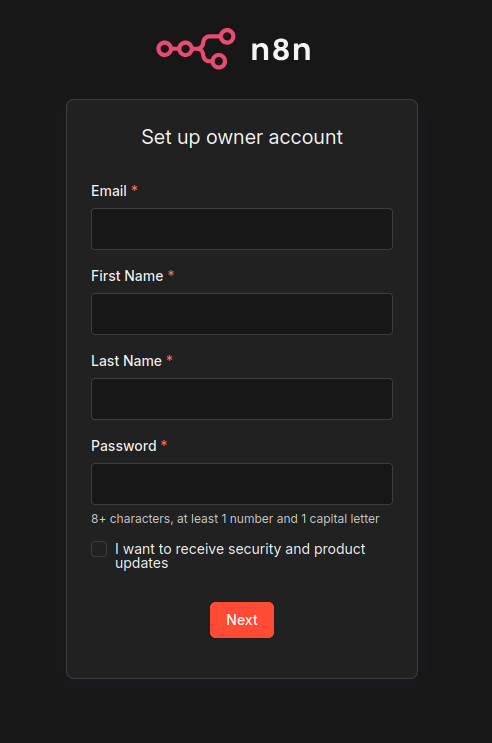
The n8n onboarding interface should appear. At this stage workflows, credentials, and automation pipelines can be configured.
Docker automatically ensures the service restarts after server reboots.
Operational Tips for Production Stability
Professional deployments benefit from a few operational practices:
Regular container updates
docker compose pull
docker compose up -d
Check container logs
docker logs -f n8n
Backup workflow data
The directory
~/n8n-docker/n8n_data
contains all automation workflows and credentials and should be included in regular server backups.
Conclusion
n8n provides a powerful automation platform capable of replacing many proprietary workflow tools. When deployed with Docker and Nginx on Debian 13, the platform becomes reliable, scalable, and secure for production use.
This architecture ensures:
- containerized deployment with Docker
- persistent workflow storage
- secure HTTPS communication
- reverse proxy routing through Nginx
Such a setup allows teams to build automation pipelines while maintaining operational stability on modern Linux infrastructure.
