

In this tutorial, we'll learn how to install Mattermost on Debian 13 server.
Mattermost is an open-source, self-hosted messaging platform that empowers teams with secure, private, and flexible communication offering a robust alternative to cloud-based tools.
Below is a detailed, step-by-step guide to installing Mattermost on Debian 13 using PostgreSQL as your database backend. This guide covers installing PostgreSQL, creating a dedicated database and user for Mattermost, configuring Mattermost to use PostgreSQL, setting up an Nginx reverse proxy, and securing your installation with SSL via Certbot.
Prerequisites
Before you begin, make sure that:
- A Debian 13 installed dedicated server or KVM VPS.
- Your DNS is set up so that your domain (for example, mattermost.example.com) points to your server.
- You have sudo privileges.
- You have basic familiarity with the Linux command line.
How to Install Mattermost on Debian 13 with Nginx and PostgreSQL database
Step 1: System update
sudo apt update && sudo apt -y upgrade
sudo reboot
Now install dependencies:
sudo apt install -y wget tar nano ufw
Step 2: Firewall
If you have enabled UFW alreay, just add port 80 and 443.
sudo ufw allow OpenSSH
sudo ufw allow 80
sudo ufw allow 443
sudo ufw --force enable
Step 3: Install PostgreSQL 17
Import the repository signing key:
sudo apt install curl ca-certificates
sudo install -d /usr/share/postgresql-common/pgdg
sudo curl -o /usr/share/postgresql-common/pgdg/apt.postgresql.org.asc --fail https://www.postgresql.org/media/keys/ACCC4CF8.asc
Create the repository configuration file:
. /etc/os-release
sudo sh -c "echo 'deb [signed-by=/usr/share/postgresql-common/pgdg/apt.postgresql.org.asc] https://apt.postgresql.org/pub/repos/apt $VERSION_CODENAME-pgdg main' > /etc/apt/sources.list.d/pgdg.list"
Update the package lists:
sudo apt update
Install PostgreSQL
sudo apt install -y postgresql-17
sudo systemctl enable --now postgresql
Step 4: Create Mattermost database and user
Login in PostgreSQL:
sudo -u postgres psql
Create database and user:
CREATE DATABASE mattermost
  WITH ENCODING 'UTF8'
  LC_COLLATE='en_US.UTF-8'
  LC_CTYPE='en_US.UTF-8'
  TEMPLATE=template0;

CREATE USER mmuser WITH PASSWORD 'StrongPasswordHere';
ALTER DATABASE mattermost OWNER TO mmuser;
GRANT ALL PRIVILEGES ON DATABASE mattermost TO mmuser;
\q
Fix schema ownership:
sudo -u postgres psql mattermost

ALTER SCHEMA public OWNER TO mmuser;
REVOKE ALL ON SCHEMA public FROM PUBLIC;
GRANT ALL ON SCHEMA public TO mmuser;

ALTER DEFAULT PRIVILEGES IN SCHEMA public GRANT ALL ON TABLES TO mmuser;
ALTER DEFAULT PRIVILEGES IN SCHEMA public GRANT ALL ON SEQUENCES TO mmuser;
ALTER DEFAULT PRIVILEGES IN SCHEMA public GRANT ALL ON FUNCTIONS TO mmuser;
\q
Step 5: Install Mattermost
Download Mattermost from official website:
wget https://releases.mattermost.com/11.2.1/mattermost-11.2.1-linux-amd64.tar.gz
Extract it:
tar -xzf mattermost-11.2.1-linux-amd64.tar.gz
Move to /opt directory
sudo mv mattermost /opt/mattermost
sudo mkdir -p /opt/mattermost/data /opt/mattermost/client/plugins
Add a user and change permission:
sudo useradd --system --user-group mattermost
sudo chown -R mattermost:mattermost /opt/mattermost
sudo chmod +x /opt/mattermost/bin/mattermost
Step 6: Configure Mattermost
Modify config.json file:
sudo nano /opt/mattermost/config/config.json
Modify:
"ServiceSettings": {
  "SiteURL": "https://chat.example.com",
  "ListenAddress": "127.0.0.1:8065"
},
"SqlSettings": {
  "DriverName": "postgres",
  "DataSource": "postgres://mmuser:StrongPasswordHere@127.0.0.1:5432/mattermost?sslmode=disable&connect_timeout=10"
}
Step 7: Create systemd service
Create systemd Mattermost service file:
sudo nano /etc/systemd/system/mattermost.service
Add following content:
[Unit]
Description=Mattermost
After=network.target postgresql.service
BindsTo=postgresql.service

[Service]
Type=simple
User=mattermost
Group=mattermost
WorkingDirectory=/opt/mattermost
ExecStart=/opt/mattermost/bin/mattermost
Restart=always
RestartSec=10
LimitNOFILE=49152

[Install]
WantedBy=multi-user.target
Reload systemd:
sudo systemctl daemon-reload
Start and enable Mattermost service:
sudo systemctl enable --now mattermost
Step 8: Install and configure Nginx
Install Nginx:
sudo apt install -y nginx
sudo systemctl enable --now nginx
Now, let's create Nginx configuration file:
sudo nano /etc/nginx/sites-available/mattermost
Add following content:
upstream mattermost_backend {
    server 127.0.0.1:8065;
}

server {
    listen 80;
    server_name chat.example.com;
    location / {
        proxy_set_header Host $host;
        proxy_set_header X-Real-IP $remote_addr;
        proxy_set_header X-Forwarded-For $proxy_add_x_forwarded_for;
        proxy_set_header X-Forwarded-Proto $scheme;
        proxy_set_header Upgrade $http_upgrade;
        proxy_set_header Connection "upgrade";
        proxy_http_version 1.1;
        proxy_pass http://mattermost_backend;
    }
}
Save and exit.
Create symbolic link:
sudo ln -s /etc/nginx/sites-available/mattermost /etc/nginx/sites-enabled/
Test and reload Nginx service:
sudo nginx -t
sudo systemctl reload nginx
Step 9: Enable HTTPS
Install Certbot:
sudo apt install -y certbot python3-certbot-nginx
Obtain SSL certification
sudo certbot --nginx -d chat.example.com
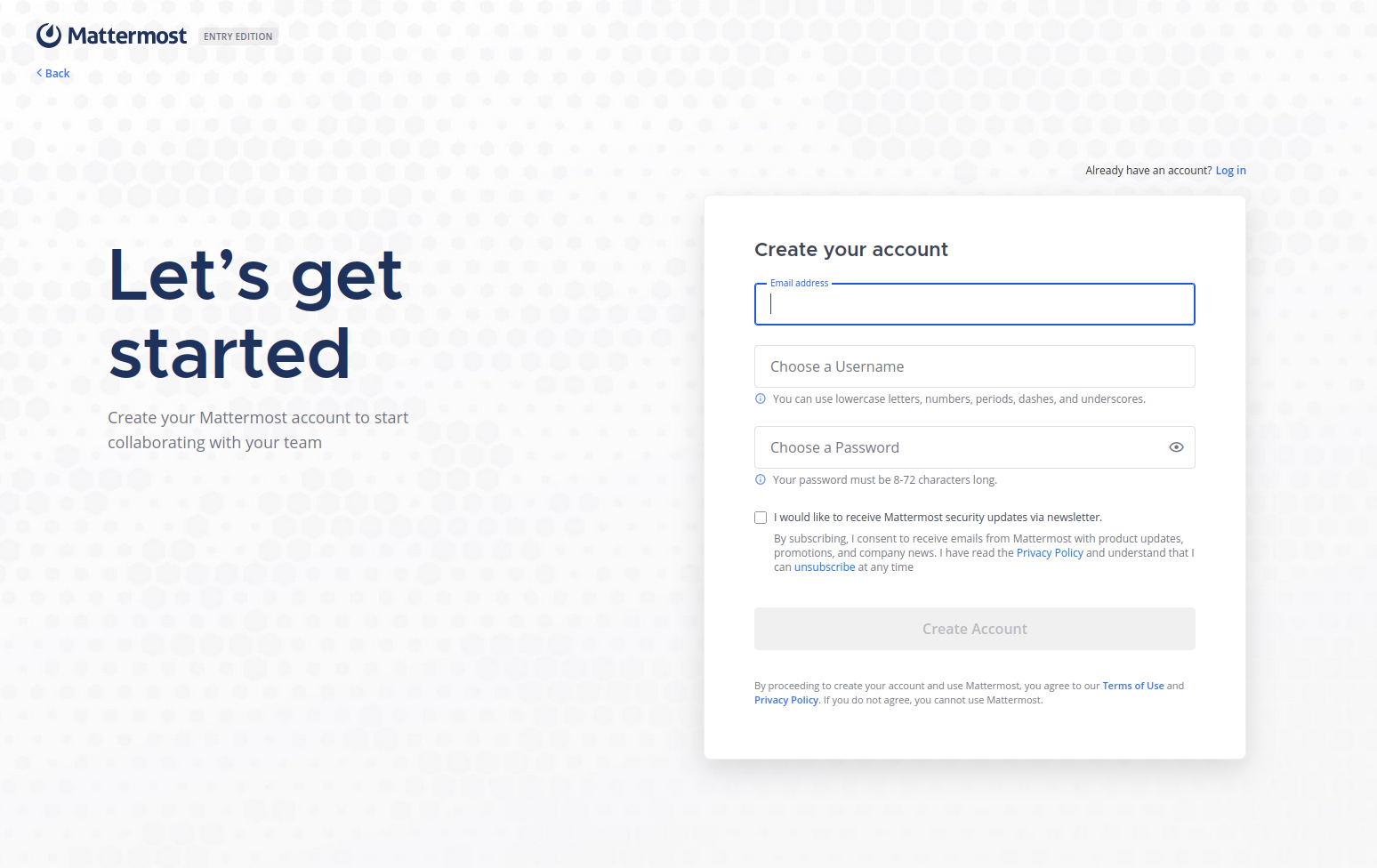
Step 10: Access Mattermost
Open:
https://chat.example.com

Step 11: Health checks
sudo systemctl status mattermost --no-pager
sudo journalctl -u mattermost -n 50 --no-pager
Troubleshooting: If you experience issues:
- Check Mattermost logs at /opt/mattermost/logs/.
- Use sudo journalctl -u mattermost to view service logs.
- Verify PostgreSQL connectivity and user privileges if database errors occur.
Conclusion
In this tutorial, we've learnt how to install Mattermost on Debian 13 server using PostgreSQL as your database backend. With Mattermost running as a system service, Nginx acting as a reverse proxy, and SSL provided by Certbot, your team communication platform is secure, efficient, and self-hosted.
This setup gives you the control and privacy benefits over cloud-based solutions while offering the flexibility to customize your environment to your needs.
