

In this tutorial, we'll learn how to install Tailscale on Debian 13.
Tailscale is modern VPN over WireGuard that makes private networking simple. We use it to connect machines securely without complex firewall rules or static public IPs. This guide shows how to install and configure Tailscale on Debian 13 with clear commands, explanations, and best practices.
What Is Tailscale and Why It Matters
Tailscale builds a private network between all devices on our team. It uses WireGuard under the hood for encrypted peer-to-peer connections. The magic? NAT traversal and simple auth via your existing identity provider (Google, Microsoft, GitHub, etc).
This makes remote access secure, fast, and frictionless for developers and ops teams alike.
Prerequisites
Before you begin, make sure that:
- A Debian 13 installed dedicated server or KVM VPS.
- You have sudo privileges.
- You have basic familiarity with the Linux command line.
How to Install Tailscale on Debian 13
Step 1 - Update and Prepare Debian 13
We always start by syncing our package index and upgrading what we have.
sudo apt update
sudo apt upgrade -y
Why? It ensures dependency libraries that Tailscale might use are up-to-date. On outdated systems, installs break in mysterious ways.
Step 2 - Install Tailscale from Official Repo
Debian 13’s default repos may not have the latest Tailscale. We add the official Tailscale repository so we get updates automatically.
Add the GPG Key
curl -fsSL https://pkgs.tailscale.com/stable/debian/bookworm.noarmor.gpg | sudo gpg --dearmor -o /usr/share/keyrings/tailscale-archive-keyring.gpg
If this fails, stop and check network or curl issues. No point continuing if the key can’t be fetched.
Add the Repo
echo "deb [signed-by=/usr/share/keyrings/tailscale-archive-keyring.gpg] https://pkgs.tailscale.com/stable/debian bookworm main" | sudo tee /etc/apt/sources.list.d/tailscale.list
Then update packages:
sudo apt update
Now install:
sudo apt install tailscale -y
This gets the latest stable release. If we skip the repo and install from snap or old apt cache, we risk outdated behavior and bugs.
Step 3 - Authenticate and Start Tailscale
Once installed, we need to log in and connect to the Tailscale network.
sudo tailscale up
This command outputs a URL like:
https://login.tailscale.com/a/…
Open it in a browser, authenticate using SSO (Google, GitHub, Microsoft, etc), and authorize this machine.
On success, the terminal shows something like:
Tailscale is running
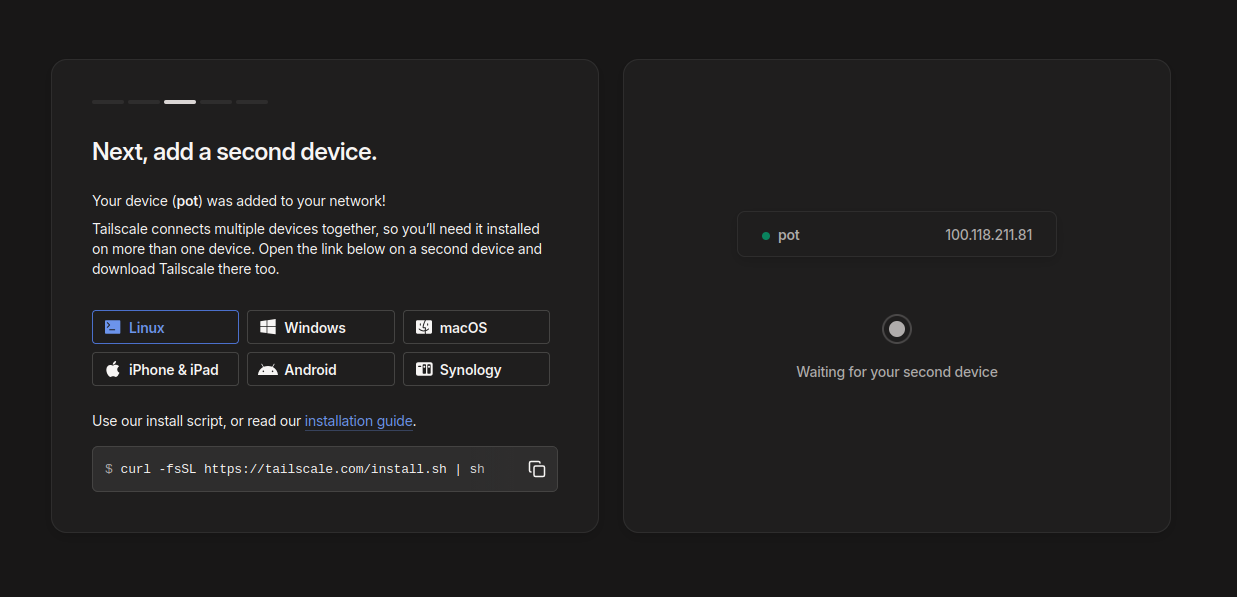
We can verify status:
tailscale status
This lists all devices on the private network. If nothing shows, authentication didn’t complete.
Step 4 - Verify Connectivity
Check assigned Tailscale IP:
tailscale ip -4
This gives a 100.x.x.x address used for private connectivity.
We can ping another peer:
ping 100.x.x.x
Replace with the peer’s Tailscale IP. If it fails, check firewall or “Allow LAN access” settings.
Step 5 - (Optional) Enable HTTPS Admin Access
Tailscale has a built-in admin UI on the host.
sudo tailscale up --accept-routes --advertise-exit-node
Explanation:
- --accept-routes: lets this machine route other networks over Tailscale
- --advertise-exit-node: makes this machine act as an exit node (like a VPN gateway)
Use this only if you understand routing and trust the network.
Step 6 - Auto Start on Boot
Tailscale installs a systemd service automatically. Check it:
sudo systemctl status tailscaled
We want:
Active: active (running)
If not, start and enable:
sudo systemctl enable --now tailscaled
This ensures Tailscale comes up after reboots. If we skip this, remote access breaks on restarts.
Step 7 - Security Hardening Tips
We don’t just install and forget. Here’s what we do in a professional environment:
Restrict SSH to Tailscale Only
We block external SSH and allow only Tailscale:
sudo ufw allow from 100.0.0.0/10 to any port 22
sudo ufw deny 22/tcp
sudo ufw reload
This means SSH over normal public IP is blocked. We trust Tailscale’s encryption and ACLs.
Verify ACLs in Admin Console
Log into:
https://login.tailscale.com/admin
Here we define who can access what. If we skip this, every authenticated device might see everything.
Common Errors and How We Fix Them
Install fails:
- Check internet
- Key fetch issues? Retry or check DNS
- tailscale up hangs or errors:
- Browser auth loop? Use private/incognito
- Firewall blocking? Allow https
Peers can’t see each other:
Check firewall on both ends
Confirm both show “active” in tailscale status
Verify the Whole Setup
tailscale status
tailscale ip
ping <peer-ip>
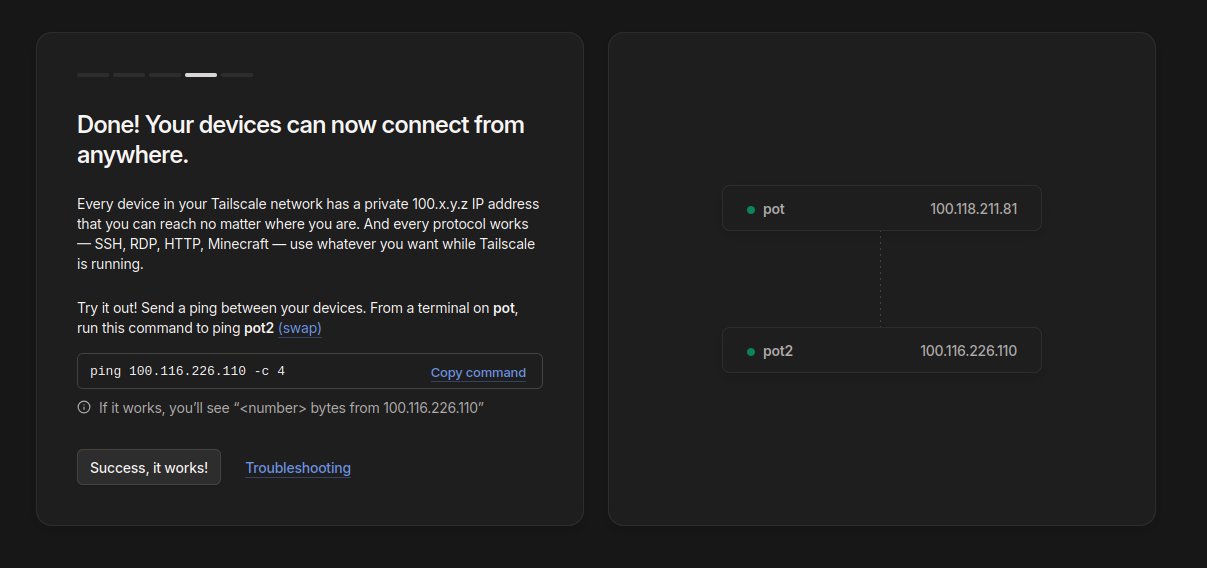
If these work, we have a secure private network.
Once two devices gets added it looks something like:
Summary
We have seen how to install Tailscale on Debian 13.
We installed Tailscale on Debian 13 with:
- Official repo for updates
- Authentication with identity provider
- Secure systemd startup
- Optional exit node and routing
- Basic hardening with firewall rules
