
Learn how to install Jenkins on AlmaLinux 10 with Nginx reverse proxy and SSL. Step-by-step production-ready CI/CD setup guide for secure deployments.
Introduction
Continuous Integration and Continuous Delivery (CI/CD) are foundational to modern software development. Jenkins remains one of the most trusted open-source automation servers used by startups, enterprises, and DevOps teams worldwide.
In this guide, we will install Jenkins on AlmaLinux 10 LTS using the latest supported method. We will also ensure the installation is secure, production-ready, and aligned with current best practices.
Prerequisites
Before we begin, let’s ensure we have the following in place:
- A AlmaLinux 10 dedicated server or KVM VPS.
- A basic programming knowledge.
- A domain name pointing A record to server IP.
Update the system first:
sudo dnf update -y
Step 1: Install Java (Required)
Jenkins requires Java 21 or later.
Install OpenJDK 21:
sudo dnf install fontconfig java-21-openjdk
Verify installation:
java -version
Ensure it shows Java 21 or newer.
Step 2: Add Official Jenkins Repository
We always install Jenkins from the official repository.
Add Jenkins repo:
sudo wget -O /etc/yum.repos.d/jenkins.repo \
    https://pkg.jenkins.io/rpm-stable/jenkins.repo
Step 3: Install Jenkins
sudo dnf install jenkins -y
Once installed, start and enable Jenkins:
sudo systemctl --now enable jenkins
Verify status:
sudo systemctl status jenkins
Service should show active (running).
Step 4: Configure Firewall (Firewalld) and SELinux
AlmaLinux uses firewalld by default.
Allow Jenkins port:
sudo firewall-cmd --permanent --add-port={80,443}/tcp
sudo firewall-cmd --reload
Verify:
sudo firewall-cmd --list-ports
SELinux (If enabled):
sudo setsebool -P httpd_can_network_connect 1
Step 5: Install and Configure Nginx (Reverse Proxy)
For production deployments, Jenkins should not be exposed directly on port 8080.
Install Nginx:
sudo dnf install nginx -y
Start and enable:
sudo systemctl start nginx
sudo systemctl enable nginx
Create configuration file:
sudo nano /etc/nginx/conf.d/jenkins.conf
Add:
server {
    listen 80;
    server_name example.com;

    location / {
        proxy_pass http://localhost:8080;
        proxy_set_header Host $host;
        proxy_set_header X-Real-IP $remote_addr;
        proxy_set_header X-Forwarded-For $proxy_add_x_forwarded_for;
        proxy_set_header X-Forwarded-Proto $scheme;
    }
}
Test configuration:
sudo nginx -t
Restart Nginx:
sudo systemctl restart nginx
Step 6: Enable HTTPS (Critical)
Install Certbot:
sudo dnf install certbot python3-certbot-nginx -y
Generate SSL certificate:
sudo certbot --nginx -d example.com
Follow prompts and select domain.
This secures Jenkins with SSL encryption.
Step 7: Access Jenkins Web Interface
Open browser:
https://example.com
On first access, Jenkins requires an initial admin password.
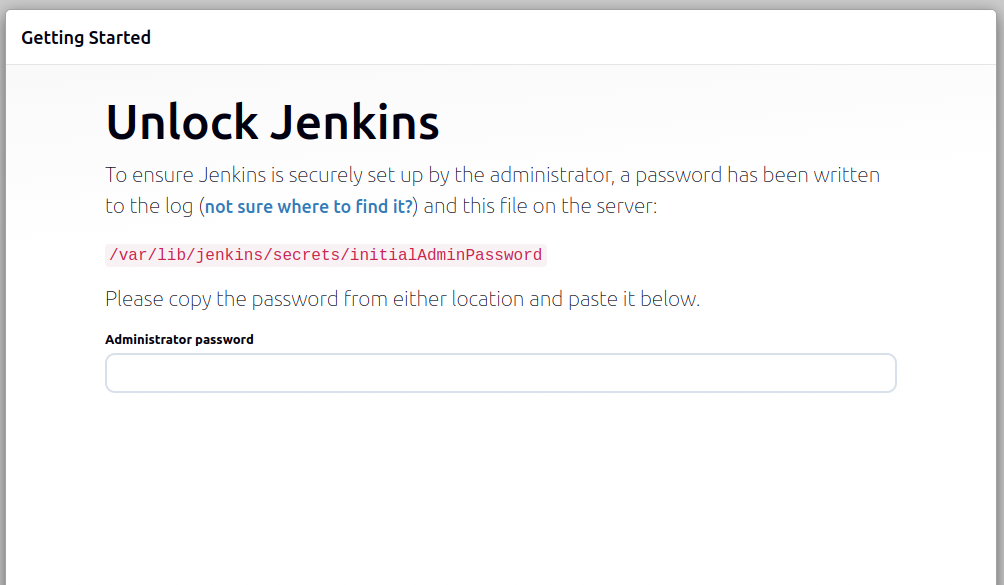
Retrieve it:
sudo cat /var/lib/jenkins/secrets/initialAdminPassword
Copy the password and paste it into the browser setup screen.
Step 8: Complete Initial Setup
Jenkins will prompt for:
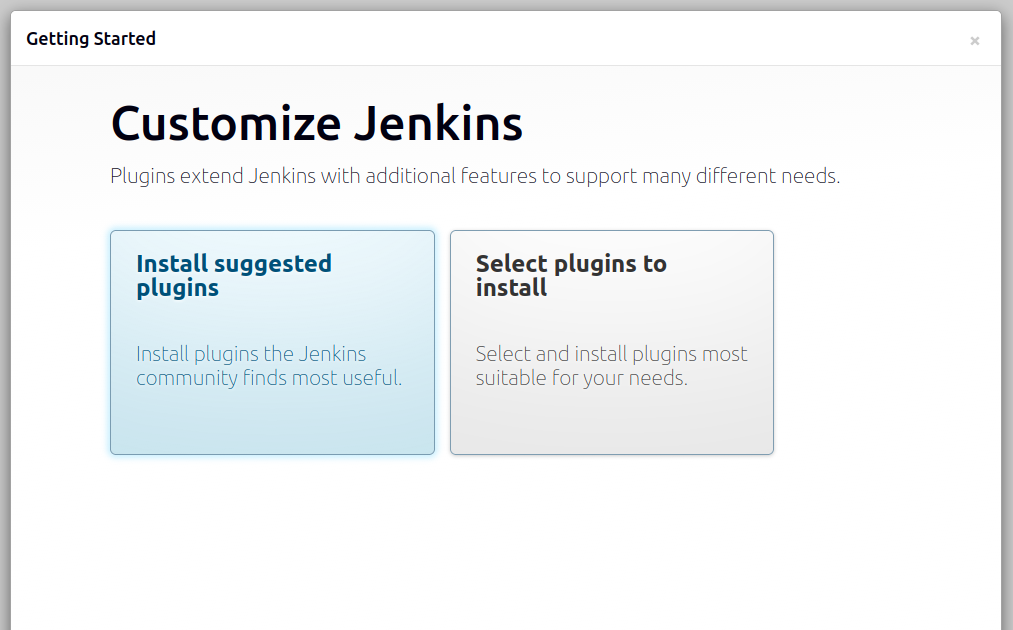
1. Install Suggested Plugins
Choose Install suggested plugins for most environments.
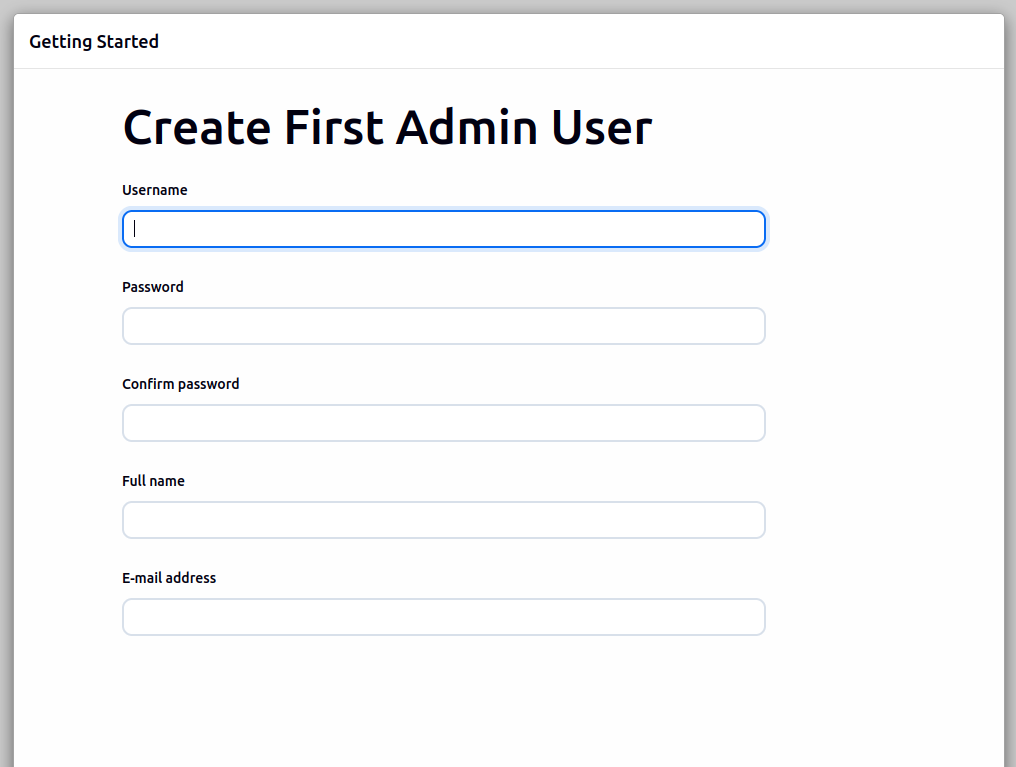
2. Create Admin User
Create a secure admin account with:
Strong password
Corporate email
Proper username
3. Instance Configuration
Confirm Jenkins URL.
After setup completes, the Jenkins dashboard will load.
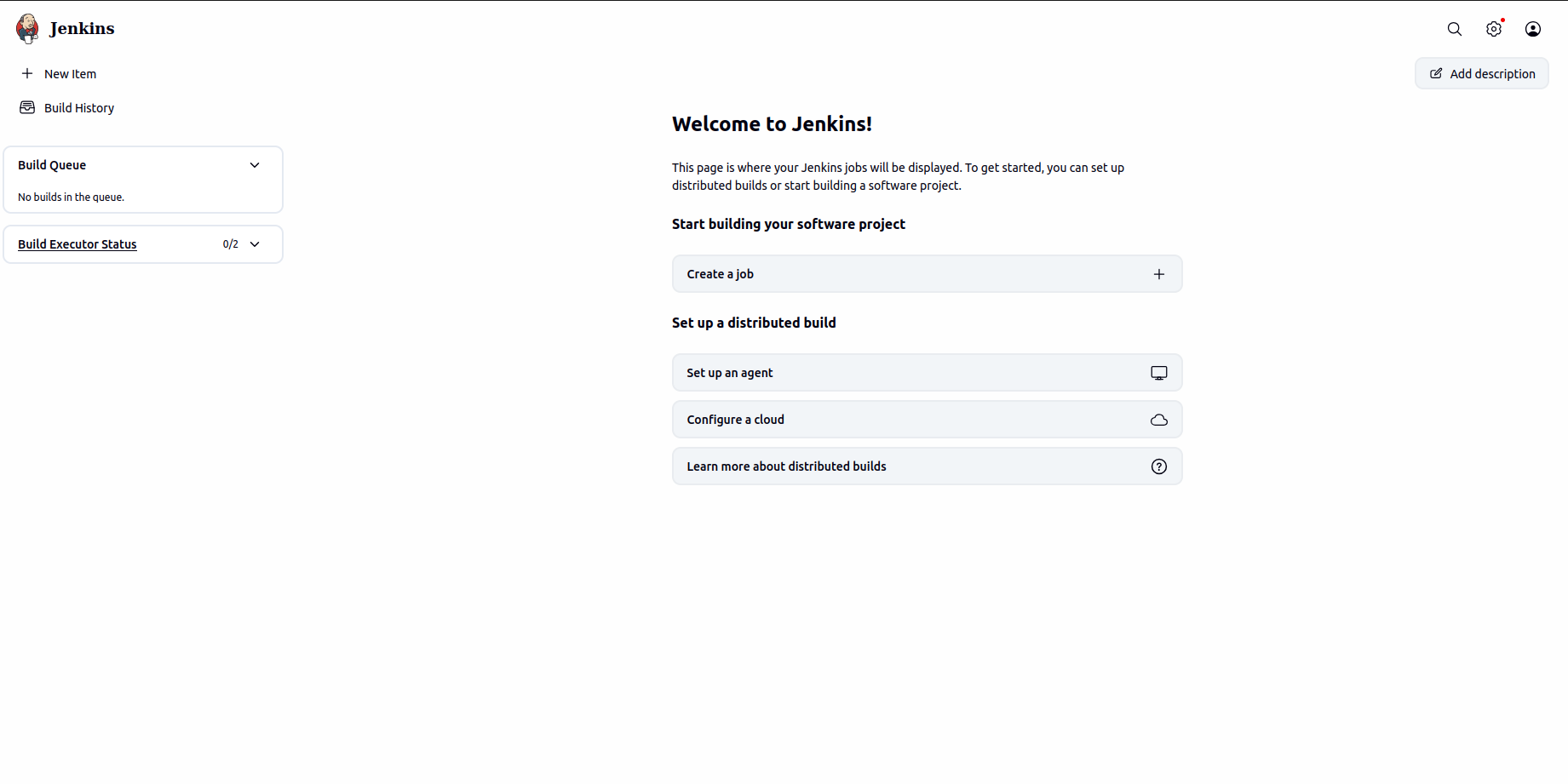
Step 9: Optimize Jenkins JVM Memory
Edit Jenkins service override:
sudo systemctl edit jenkins
Add:
[Service]
Environment="JAVA_OPTS=-Xms512m -Xmx2048m"
Save and reload:
sudo systemctl daemon-reload
sudo systemctl restart jenkins
Adjust memory based on workload.
Step 10: Verify Jenkins is Working
Create a simple test job:
- Click New Item
- Select Freestyle project
Add simple shell build step:
echo "Jenkins installation successful"
Run build and verify console output.
Conclusion
Installing Jenkins on AlmaLinux 10 is straightforward when following the official repository method and proper security practices.
With Java 21, secure repository setup, firewall configuration, reverse proxy, and HTTPS enabled, Jenkins becomes a production-ready automation server capable of handling modern CI/CD workflows.
